
Note: See Majordomo Overview: Accessing Majordomo for information on Majordomo access.
If you would like to change your password, follow the steps below.
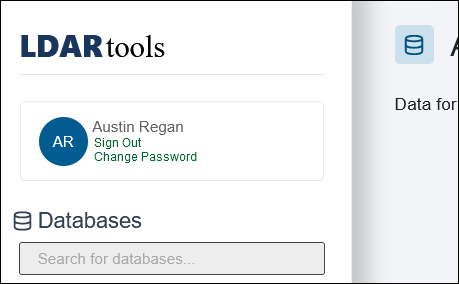
Navigate to the Overview screen.
-
On the Overview screen, click Change Password.
-
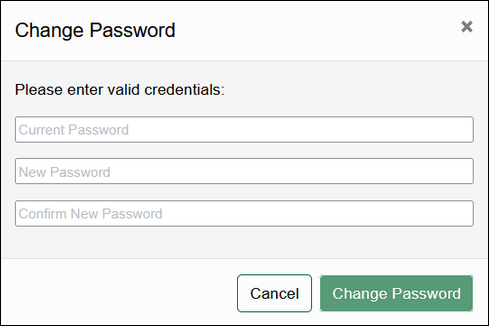
A “Change Password” prompt will appear, displaying the following fields:
Current Password
New Password
-
Confirm New Password
-
Your new password must meet the following requirements.
Must be at least 8 characters
Must match
Must include an upper-case character
Must include a symbol
Must include a numerical character
Must not contain empty spaces
-
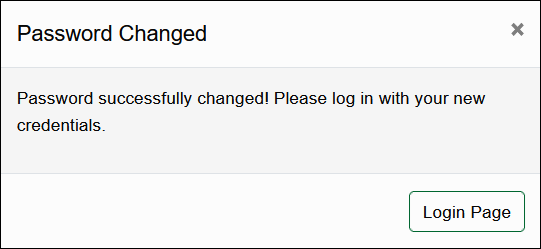
After entering the required information and clicking to confirm the change, you will be signed out.
-
You will need to sign back in using your new password.
-
-
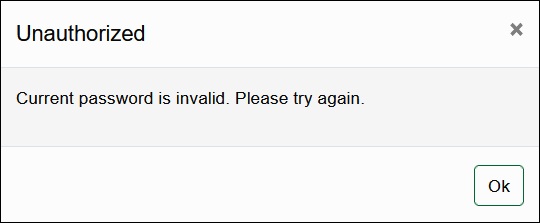
If you enter an incorrect Current Password, then you will receive an “Unauthorized” prompt.
If you encounter any issues or have further questions, please contact your support team for assistance.
Comments
0 comments
Please sign in to leave a comment.