
Overview
Chateau supports Single Sign-On (SSO) via the Microsoft Identity Platform. This will allow you to sign into Chateau using your work id issues by your organization.
Prerequisites
In order to sign in using SSO you must have a valid account issued by your organization that is compatible with the Microsoft Identity Platform. This is usually a Microsoft Entra ID (formerly Azure Active Directory) account.
Lastly, you must have a Chateau account that matches the account name of your organization. For example, if your organization account is han.solo@rebelalliance.com, you must have a Chateau account with the username han.solo@rebelalliance.com.
Signing in
Note: If a user is unable sign in, ensure the user exists in Majordomo and is added to the required databases. If the user is in Majordomo and issues persist, consult with the site’s IT to troubleshoot further.
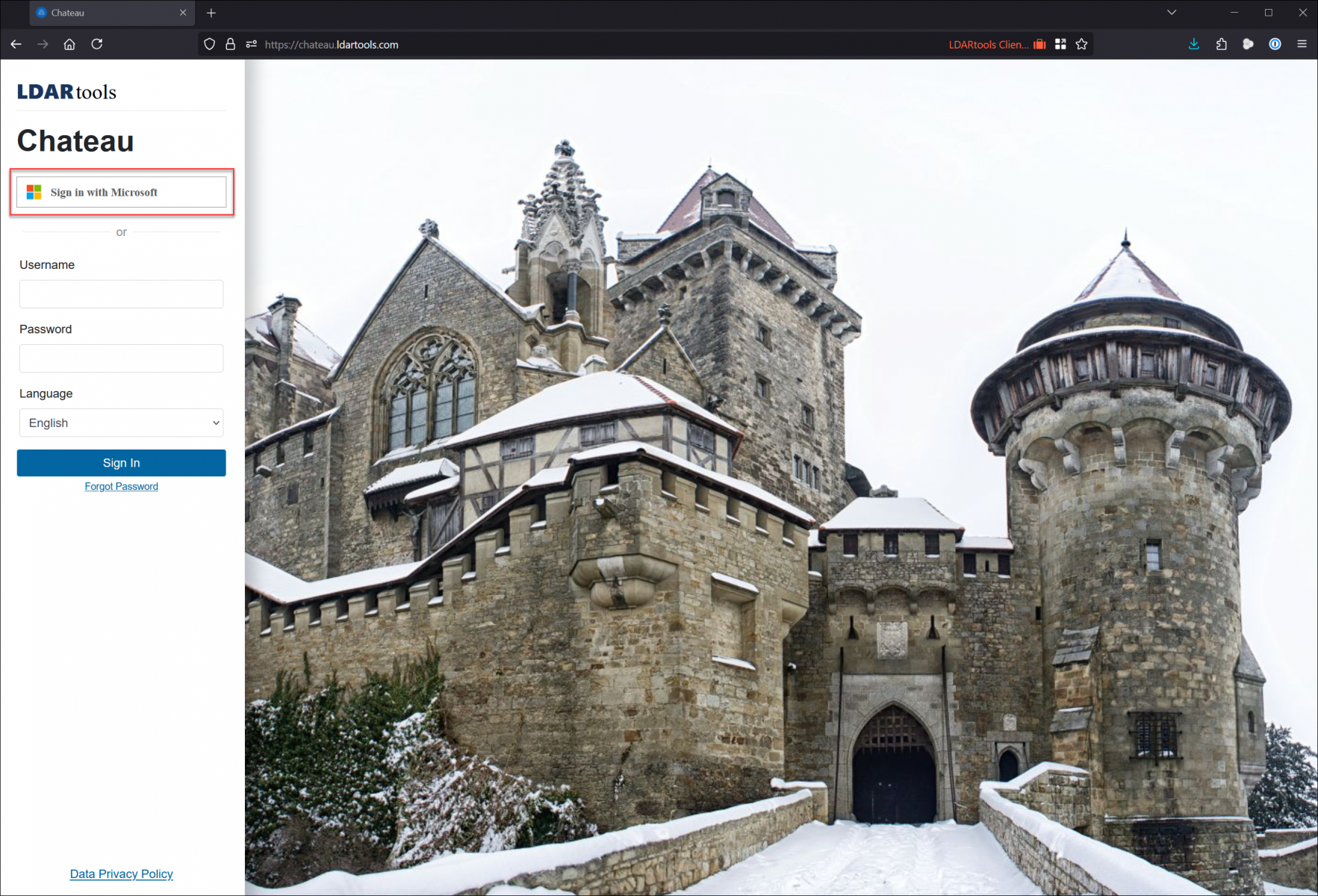
Go to chateau.ldartools.com.
-
Click the Sign in with Microsoft button.
-
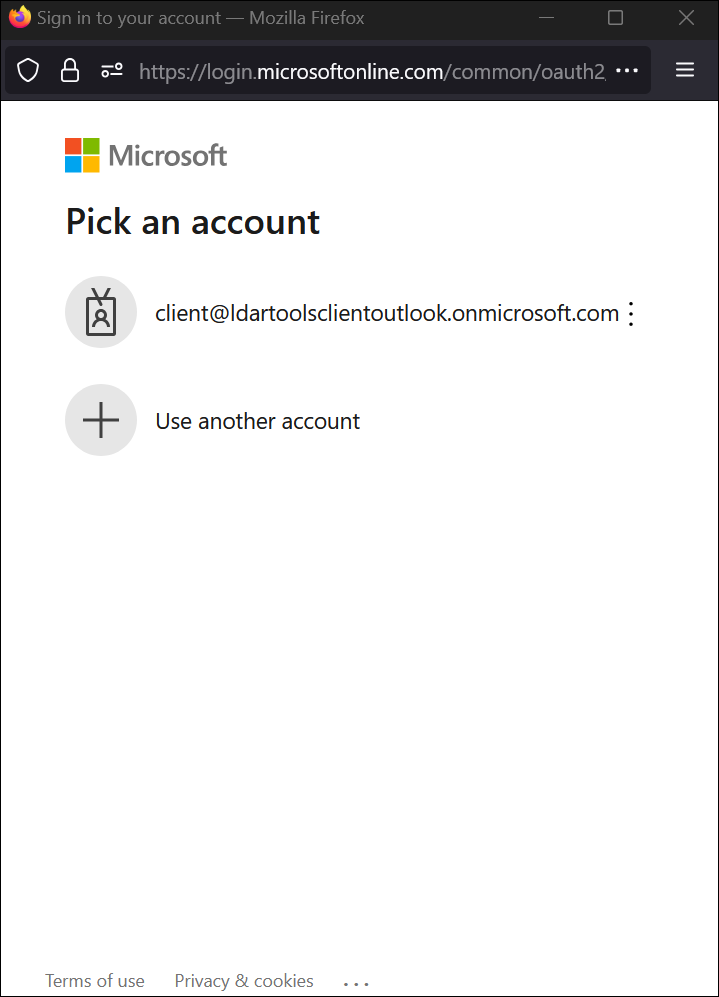
If you are not already signed in with your work account. You may be prompted to enter in your password, MFA code, or other authentication identity factor to sign in with your organization’s account. You may also see your organization’s branding on the sign in form.
- Upon completed the dialogs you will be signed into Chateau. If you are already signed in with your organization and have accepted the permission dialog, this process will be as easy as clicking the “Sign in with Microsoft” button.
Comments
0 comments
Please sign in to leave a comment.