
| Subtabs | Description |
|---|---|
| AVO Events | See AVO Events. |
| DORs | View, edit, or close your open DORs, as well as add documents and attempt records. Or access the Closed DORs grid to manage your closed DOR records. |
| Leaks | Manage open leaks in the Open Leaks grid, and review a tag's full leak history in the All Leaks grid. Open Leaks is the working grid for leaks that are still open — select one or more to set a next action, schedule a retest, plan a DOR, add to a tour, add a comment, or close them. All Leaks is a view-only grid covering both open and closed leaks in one place. It opens with a Date Opened criterion already filled in for the last seven days, shown in the query builder — so it is not the whole history until you widen or clear that criterion and search again. Open-only columns such as Next Action, Waiting Action and Last PPM are blank on closed rows, and close-only columns (Close Why, Close Date, Closed By) are blank on open rows. |
| Leak Alerts | Set up automated emails to alert you to new or current leaks. |
| Shutdowns | Manage your existing shutdowns or add new ones. Shutdowns can be set to either LUnit or Process Unit. In addition, you must enter a name, description, start date and end date — the end date is labeled Shutdown End (Startup). Expected Emissions are optional, and are entered in either Kilograms (kg) or Pounds (lbs), chosen with the radio buttons beneath the field. Use the Show Deactivated Shutdowns toggle above the grid to bring deactivated records back into view. |
In the Grid
Leaks are triggered by failed inspections. If you wish to add a leak manually, please do so by adding the inspection record that triggered this leak. Refer to the Inspections article for instructions on adding an inspection.
| Term | Description |
|---|---|
| Associated Leaks |
Set of leaks on the same component but generated by different leak definitions or leak response days according to different rules. Example: if Tag 17 had a 1,100 PPM reading which created a leak for Rule A (at 500PPM) and Rule B (at 1,000PPM), then Chateau had TWO leaks, but recognizes they are sharing the same component and inspection. Hover over any leak in a shared set and every member of the set turns bold at once, which is how you spot an associated set at a glance. Selecting one does not tick the others — the count at the bottom of the grid still reads Selected: 1 — but opening one does open a tab for each of the others, as the note above the grid says. |
| Last Inspection Date | The date of the most recent inspection of any type performed on the component. Available on the Open Leaks grid. |
| Last Inspection Type | The detection method (M21, AVO, OGI or Cooling Tower) of the most recent inspection performed on the component. Available on the Open Leaks grid. |
| Last OGI Result | Pass or Fail from the most recent OGI inspection performed on the component since the leak opened, so you can tell at a glance which open leaks have already been re-checked with a camera. Available on the Open Leaks grid. |
| Last AVO Result | Pass or Fail from the most recent AVO inspection performed on the component since the leak opened. Sits next to Last OGI Result and works the same way. |
| B & C in Due Dates | B indicates it is due in Business Days, while C indicates it is due in Calendar Days. Please see here for the details of leak response deadlines in Business Days. |
| Close Why | The reason recorded against a closed leak, chosen in the dialog that appears when you press Close Leak. It arrives pre-set to Pass, and the Leak Close effective date beside it defaults to today. The list of reasons is configured per database — a typical set is Pass, DOR, Late As DOR, No Attempt Required, Deactivated, New Equipment, Component MisIdentified, Bypassed and Purged, Drift Fail High Corr, Resolve LowE Item and See Document — so yours may differ. After this dialog there is a second confirmation step before anything is written. One thing to watch: the reason box has an × that clears it, and clearing it does not gray out the Close Leak button. If you clear the reason and press Close Leak, the dialog just closes and the leak stays open, with no error message to tell you it did not take. So if a leak you thought you closed is still listed as open, check that a reason was selected and close it again. |
| Closing Multiple Leaks | If you select more than one leak in the grid and then click Close x Leaks, you can close all of them at once with the same date. However, Chateau will restrict the dates you can use for Date Closed based on the most recently opened leak. This is to prevent accidentally choosing a Date Closed for a leak before the Date Opened date. |
| Emission Point | The point of the component on which the leak was detected; e.g., Bonnet, Stem or Cap. The Leaks grid displays all emission points on record for this component. You can customize the options for emission points at Settings / Picklists / Category=Leaks; the picklist name is “Emission Point.” If the wrong emission point were entered, you can edit it here. |
| Final Resolution Due | When the Final Resolution is due on a leak based on the rule applied. |
| First Attempt Due | When the First Attempt is due on this leak based on the rule applied. |
| First Retest Due | When the first retest is due on a leak based on the rule applied. |
| Leak Actions | The six action buttons above the Open Leaks grid: View Leak, Set Next Action, Plan DOR, Add Comment, Close Leak and Add To Tour. Some stay grayed out until you have selected the right number of leaks — Set Next Action needs one or more, the DOR button needs exactly one. Two of the labels rewrite themselves to match what you selected. The DOR button reads Plan DOR when the tag has no open DOR and Add to DOR when it already has one, so the label tells you whether you are starting a DOR or joining the leak to an existing one. Close Leak becomes Close 3 Leaks (with the real count) when you have more than one selected. Also note that selecting and viewing any leak opens every leak on that tag, not only the row you ticked. |
| Next Action | The Next Action required on a Leak; e.g., Report to Maintenance, Await Maintenance or ReTest. Next Action for leaks can be set either via the button above the Leak Grid, or in the Individual Leak View. For DORs, you have to set the Next Action in the Individual DOR View. Setting the Next Action does not automate any of the actions. For example, if you select ReTest as the Next Action, you will still need to add the component to a ReTest tour or schedule it for ReTest. Instead, it starts counting days on Waiting Action so you can keep track of the response progress. |
| Leak Status | Open or Closed. Present on both grids, but only worth adding to Open Leaks if you have a reason — every row there is open. On All Leaks it is the column to filter when you want closed leaks only. |
| Regulation | This is generated by Chateau’s Rules Engine. You cannot edit it. If more than one regulation are affected, they will all be listed. |
| Secondary Leaks | A leak found on an existing leak at a higher PPM after an Attempt and ReTest on an existing leak. |
| Tour | If the leak was added to a tour, the name of the tour will appear in this column. |
| Trigger PPM | The PPM which triggers the Leak for the applicable regulation. |
| Waiting Action | This tells you how many days you have been waiting at the current Action state. |
| Work Order | Assign a work order number to a leak by opening the leak and entering it. You can view and sort work order numbers in the grid. |

| Next Action | Waiting Action | Description |
|---|---|---|
| Await Maint. | 8 days | You have been waiting to hear back from Maintenance for 8 days. |
| Report to Maint. | 2 days | You have been waiting to report this leak to Maintenance for 2 days. |
| ReTest | 1 day | You scheduled this for ReTest yesterday. |
| ReTest | 0 days | You scheduled this for ReTest today. |
Leak Details
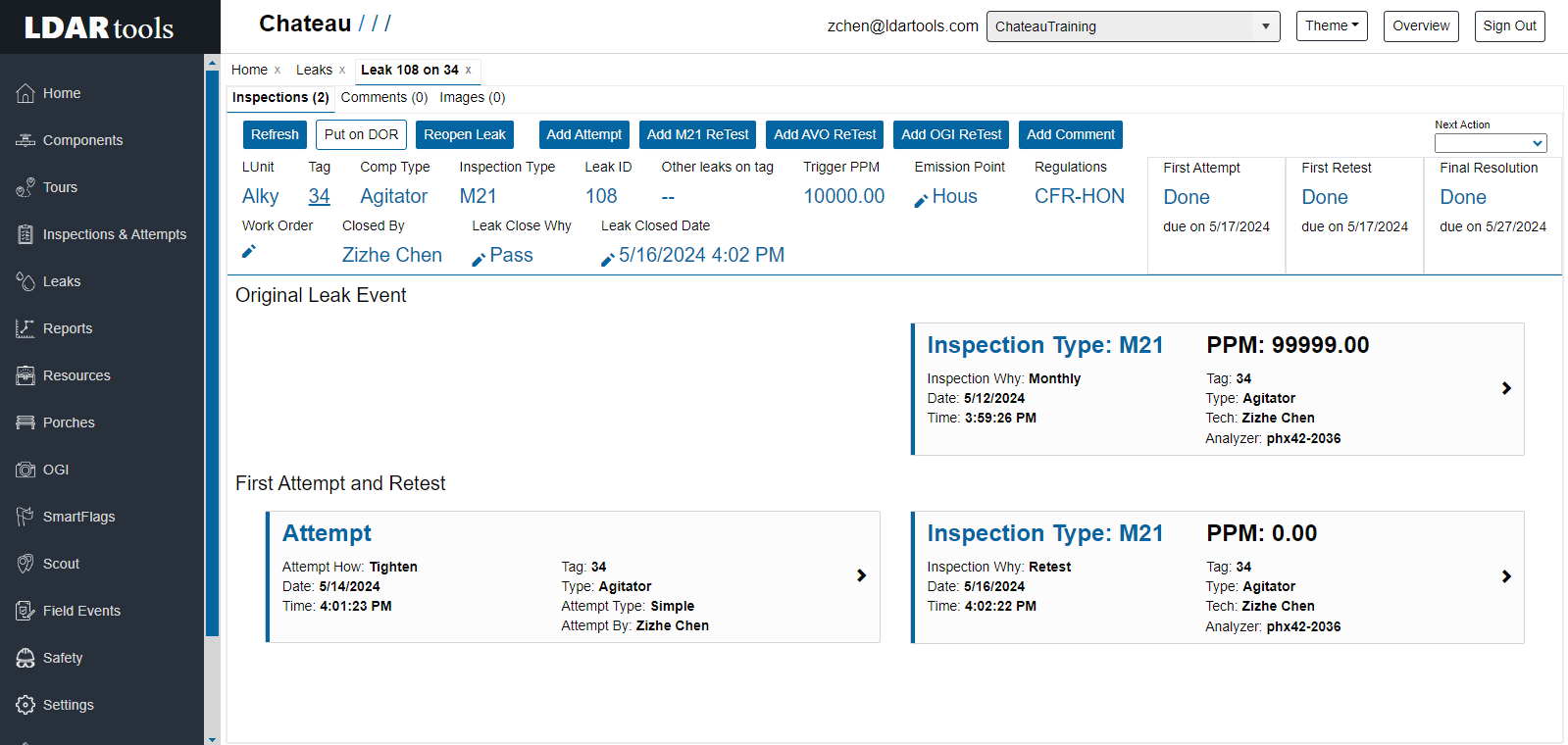
| Action | Process |
|---|---|
| Add Attempt | Add records of attempts manually here. |
| Add M21/AVO ReTest | Adding inspection records manually. M21/AVO Why=ReTest |
| Comments | View and add comments in this tab. |
| Emission Point |
The point of the component on which the leak was detected; e.g., Bonnet, Stem or Cap. Click the pen icon if you wish to change the emission point. If the wrong emission point were entered, you can edit it here. |
| Images | View target and inspection images. |
| Leak Event Tiles | Shows the original event that triggered the leak, and Attempts/ReTests, if any. Click on the tiles to view or edit the inspection records. You can also add documents to the inspections. |
| Next Action | Select the next action for this leak. |
| Tag | Click the hyperlinked number to open Tag View. |
| Work Order | Click the pen icon to edit the work order number. |
Note: Chateau takes into account the time of an attempt when associating it with a leak. For example, if a repair attempt has a time performed 5/2/24 11:24 AM, and the leak closed time is 5/2/24 10:23 AM, the repair attempt will not show up on the leak records, leak reports or DOR reports. The Repair attempt’s time performed should be adjusted to before 5/2/24 10:23 AM, or the leak closed time should be advanced to after 5/2/2024 11:24 AM.
Finding Closed Leaks
There is no separate Closed Leaks subtab. Closed leaks live in the All Leaks grid alongside open ones — filter the Leak Status column to Closed to see only those. From there you can open an individual leak's details and re-open it if it was closed in error.
Two things to know about All Leaks. It is view-only, so the action buttons on Open Leaks are not offered. And it opens with a query already applied — Date Opened, Greater Than, one week ago — so a leak older than that will not appear until you widen or remove that criterion in Show Query.
Comments
0 comments
Please sign in to leave a comment.