Troubleshooting the LDARtools WASP Hotspot (Pepwave Router)
Published: 2026-11-13 Revised: ---
Some SpanBoxes connect to the internet through an LDARtools WASP hotspot, a small Pepwave cellular router. Use this article if your SpanBox uses a WASP and has stopped syncing to Chateau.
Before you start
- Your calibration records are not lost. The SpanBox saves them and sends them to Chateau the next time it has an internet connection.
- Need to sync right away? You can connect the SpanBox to a phone hotspot or plant Wi-Fi in the meantime. See Manage Wireless Network.
Step 1: Check the power
- Make sure the WASP power cord is plugged into a standard 110V outlet.
- Make sure the other end is plugged into DC on the front of the WASP.
Step 2: Check the lights
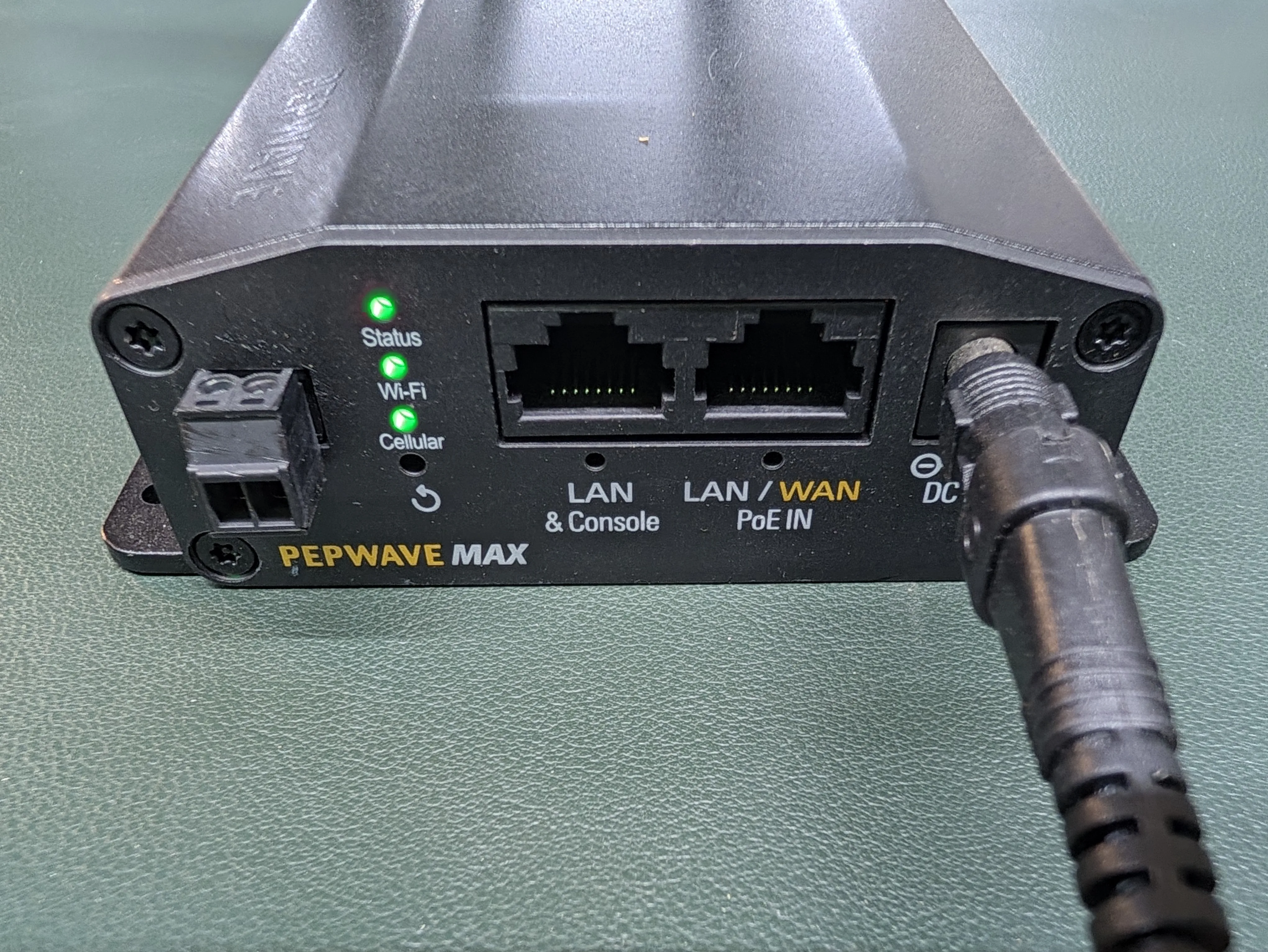
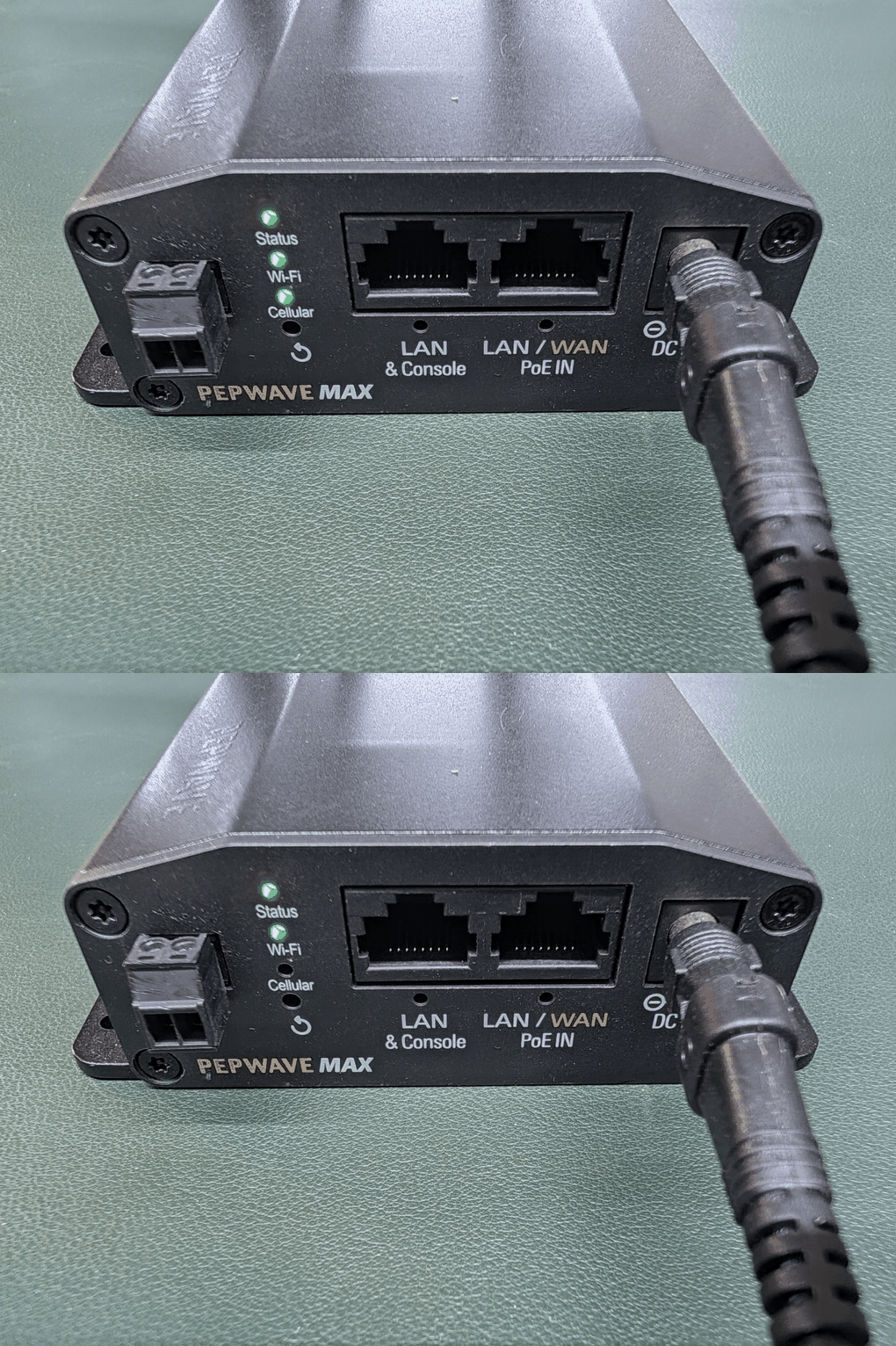
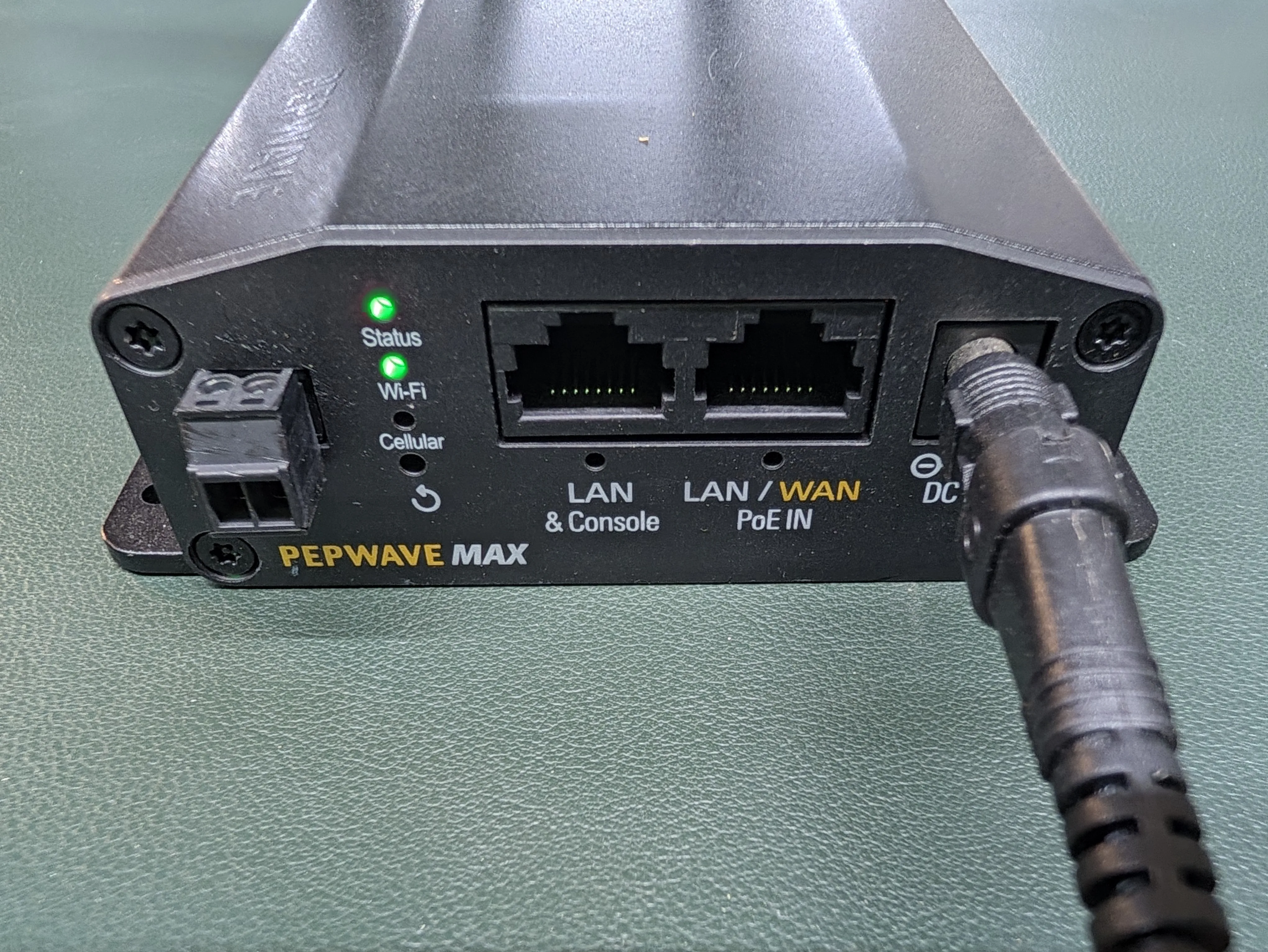
The WASP has three lights on the front, labeled Status, Wi-Fi and Cellular.
| What you see | What it means | What to do |
|---|---|---|
| All three lights solid green | The WASP has a cellular signal and is providing Wi-Fi. | Go to Step 3. |
| Cellular light blinking | The WASP is still finding a cellular signal. | Wait a few minutes for it to turn solid green. |
| Status and Wi-Fi green, Cellular light off | The WASP has no cellular service. This usually means the SIM card is inactive or missing. | Go to Step 4. |
| No lights at all | The WASP isn't getting power. | Recheck Step 1, then try a different outlet. |
Note: Don't press the small reset button (↻) under the lights. It can erase the WASP's settings. To restart the WASP, unplug it instead (see Step 4).
Step 3: Connect the SpanBox to the WASP
-
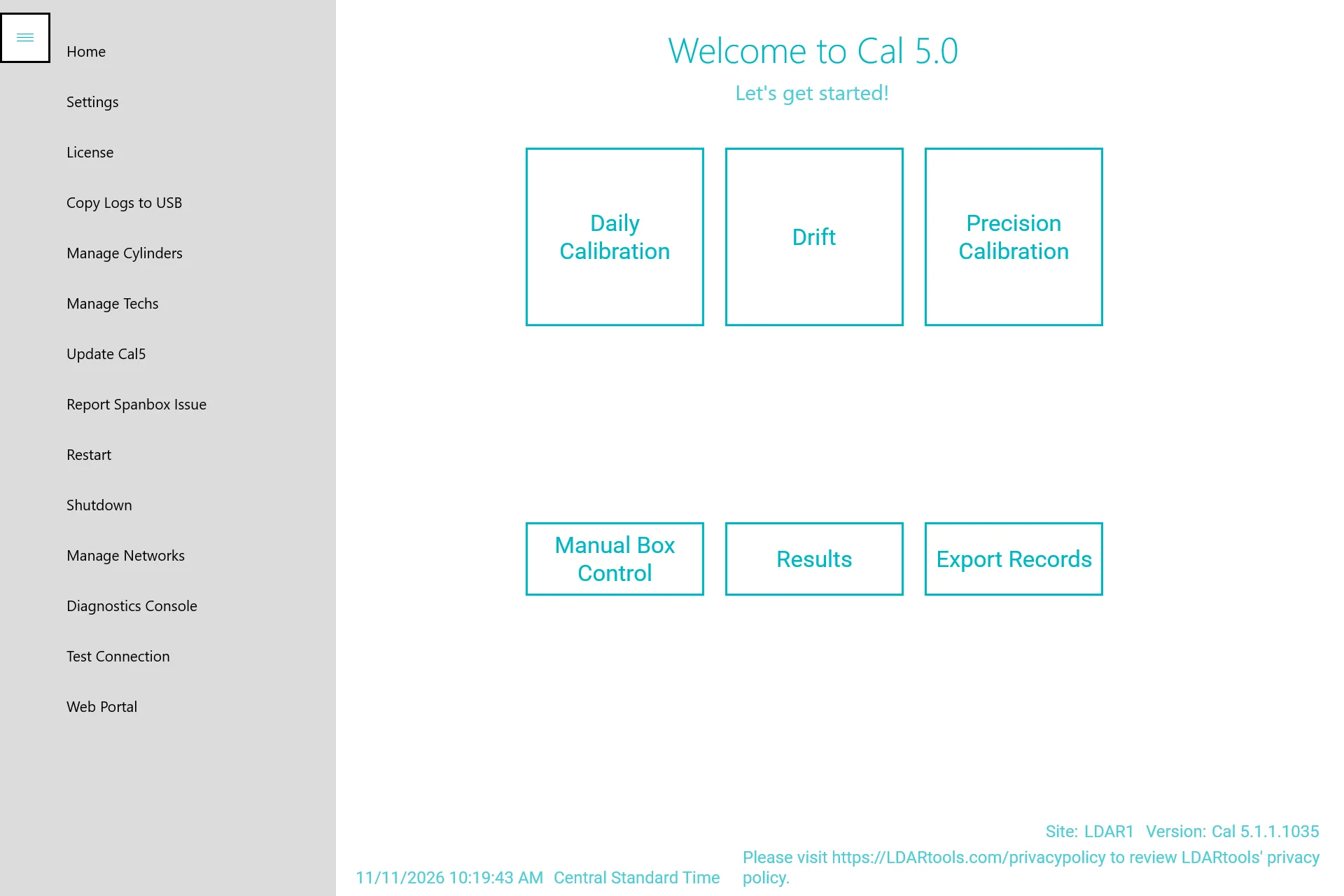
In Cal5.0, tap Menu (☰) > Manage Networks.
-
Tap Search (tap OK first if a prompt appears).
-
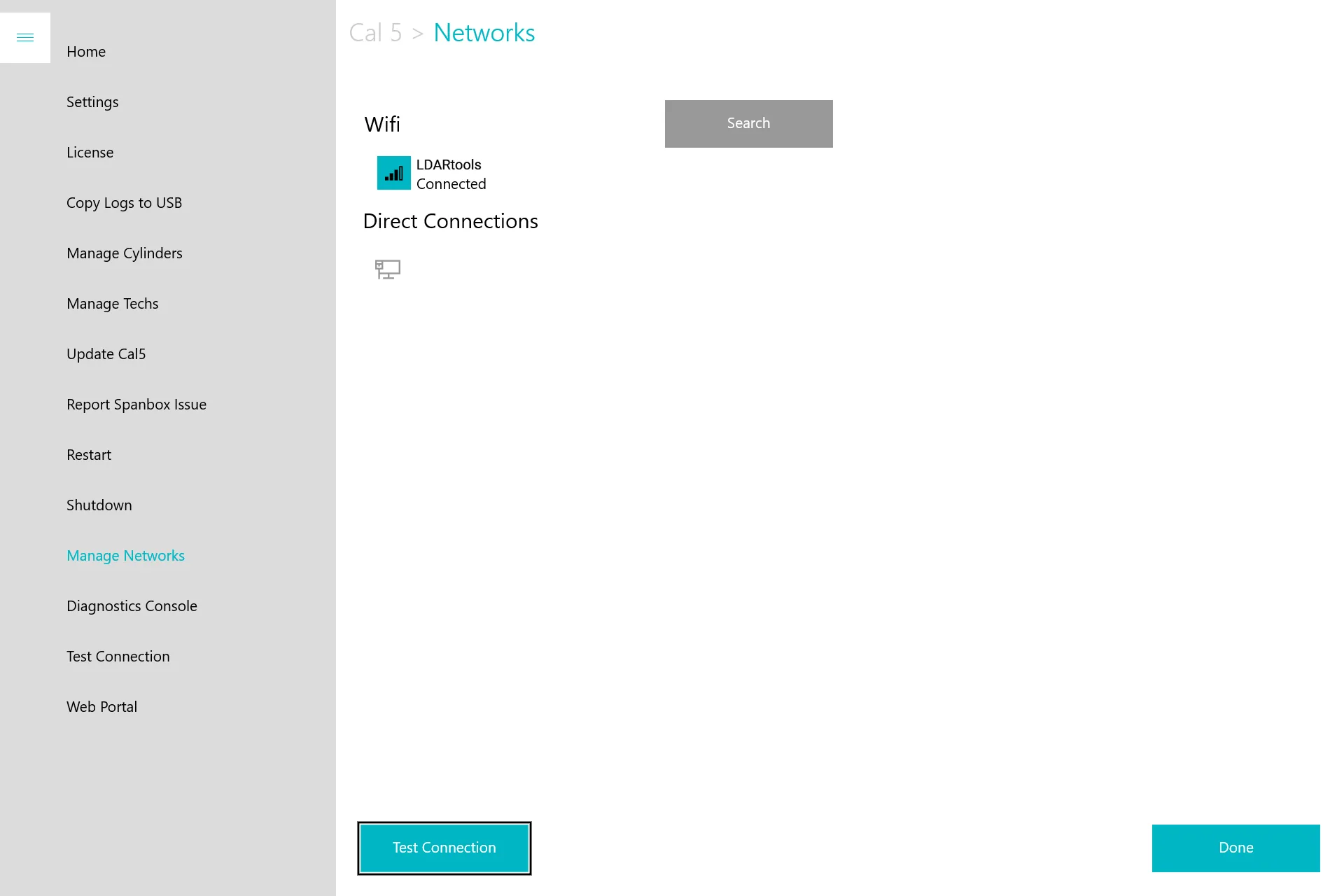
Look for the LDARtools network under Wifi. Select it and tap Connect. It shows Connected once the SpanBox joins it.
-
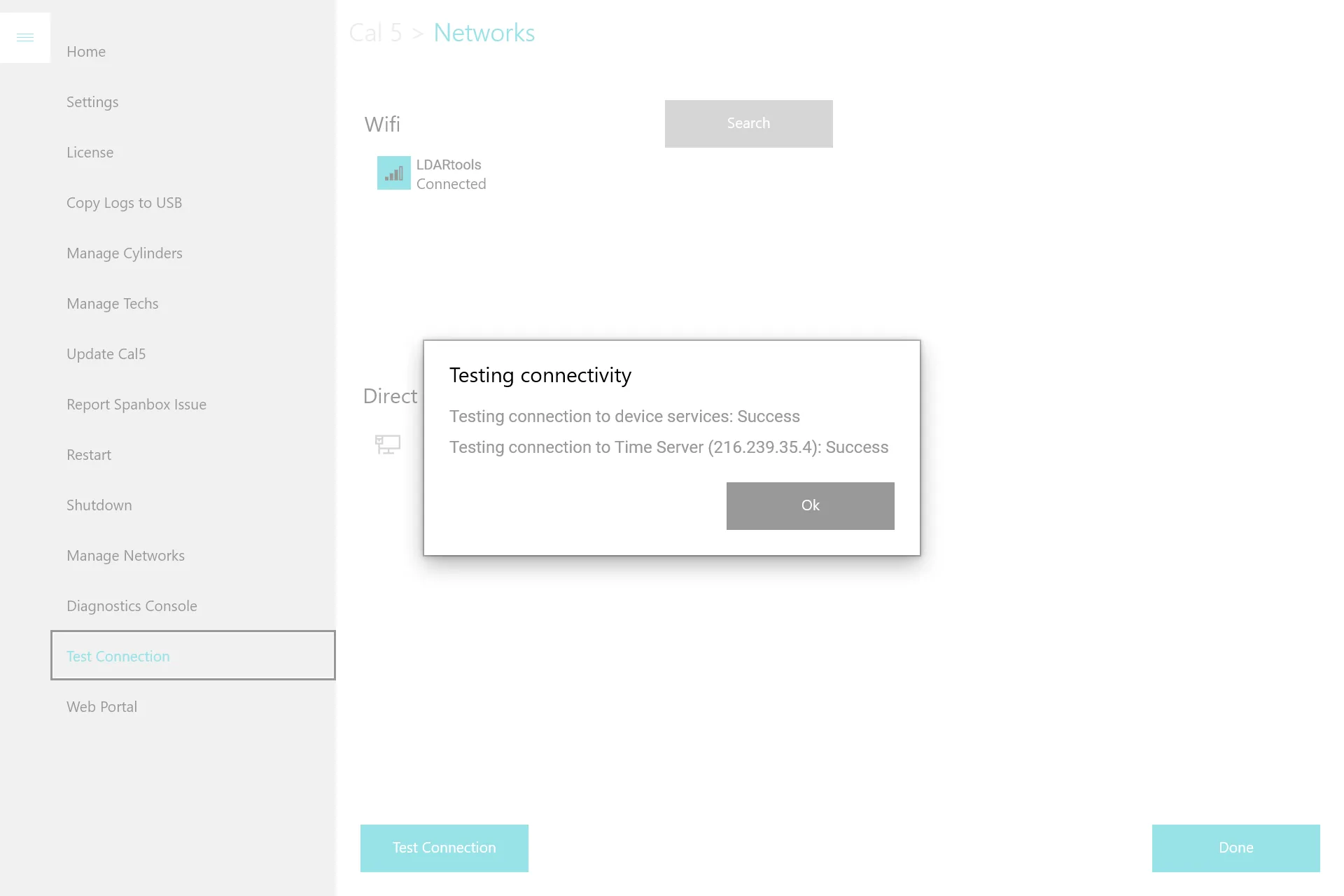
Tap Test Connection. Both lines should say Success.
If LDARtools doesn't appear, tap Search again. If it still doesn't appear while the WASP lights are solid green, contact support.
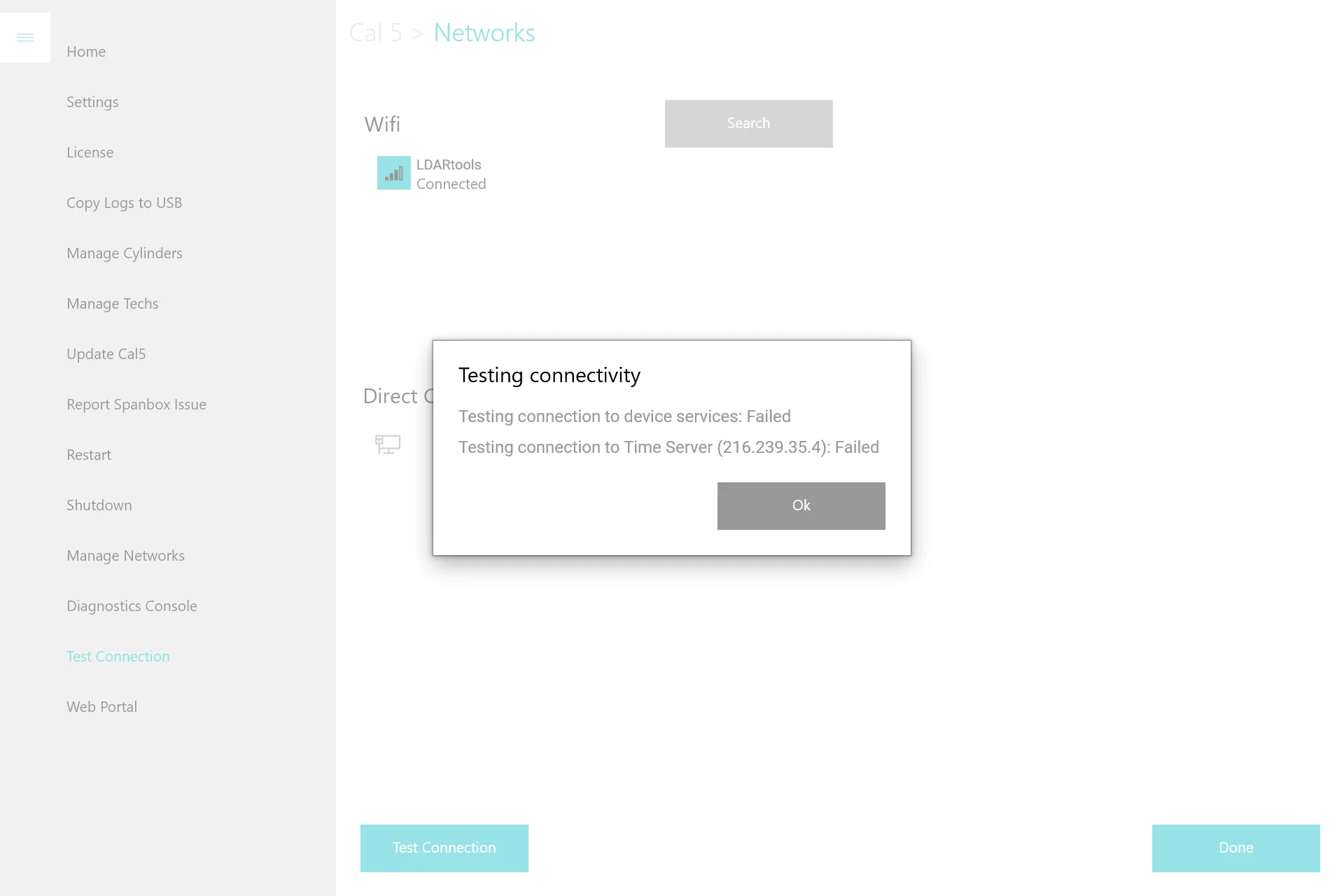
If the test fails, as in the image below, the SpanBox is connected to the WASP but can't reach the internet through it. Go back to Step 2 and check the Cellular light. If all three lights are solid green, see Troubleshooting Network Connections.
Step 4: Check the SIM card
The older WASP SIM cards were shut off in September 2026, and LDARtools shipped replacement SIM cards to affected sites. If your WASP's Cellular light is off, the replacement SIM may not be installed yet.
-
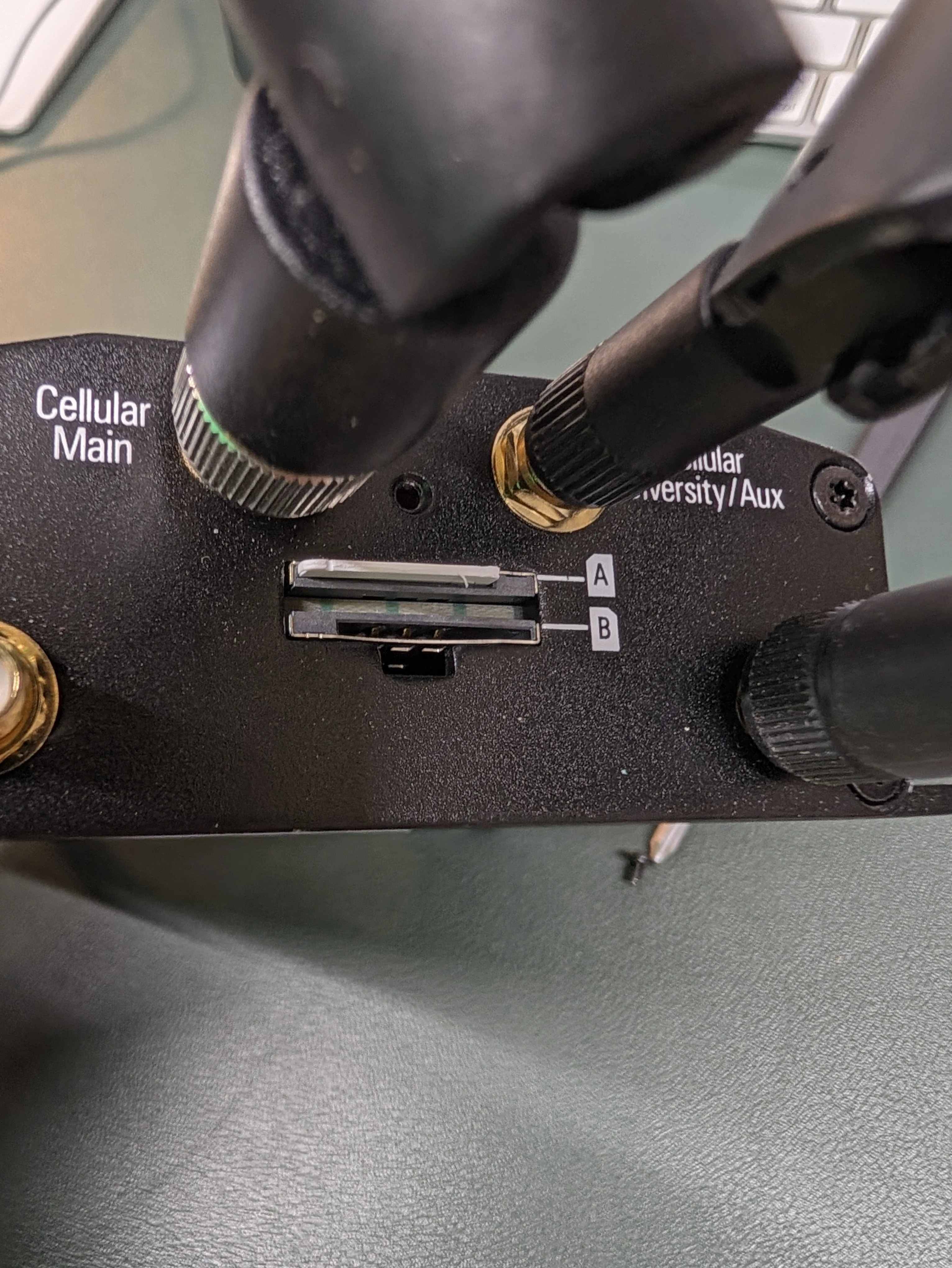
Find the SIM slots on the back of the WASP, between the antennas, and remove the SIM cover.
-
Check that a SIM card is in the top slot, labeled A.
-
If there is more than one SIM card in the WASP, the older card may no longer be active. Make sure the newest card is in slot A.
-
Replace the SIM cover.
-
Restart the WASP by unplugging it for 10 seconds, then plugging it back in.
-
Wait for all three lights to turn solid green, then repeat Step 3.
Don't have a replacement SIM card? Contact support. We'll need the WASP's IMEI to activate a new one.
Contact support
If the WASP still isn't working, submit a ticket through the Customer Portal: go to LDARtools.com > Support > Customer Portal and click the Hardware Support Team tile. If you can't reach the Customer Portal, email support@ldartools.com as a last resort.
Include the following. It helps us find the problem quickly:
-
What you're seeing: records not reaching Chateau, a connection error on the SpanBox, or something else
-
A photo of the lights on the front of the WASP
-
A photo of the SIM card, showing the number printed on it
-
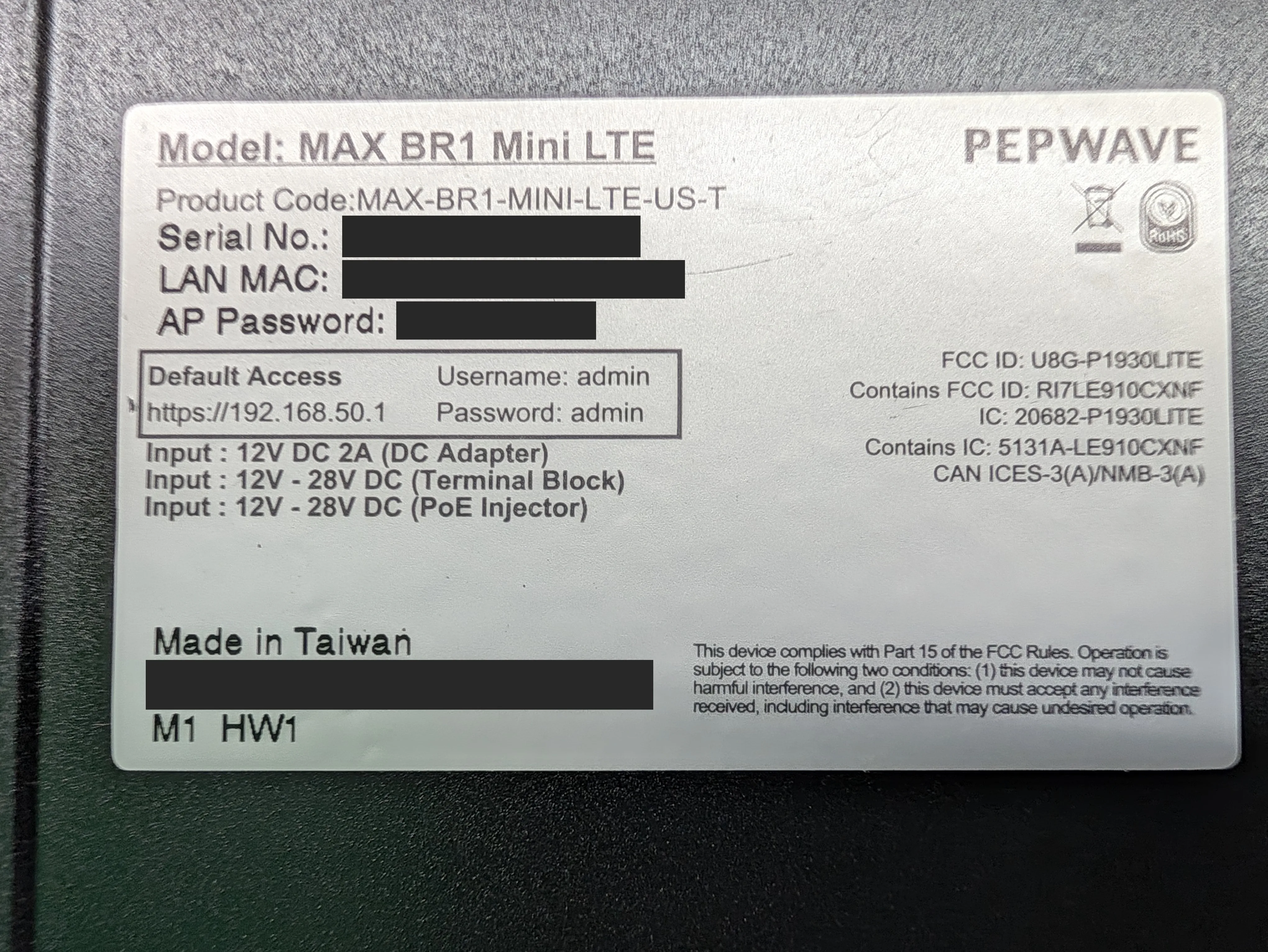
A photo of the label on the bottom of the WASP. The IMEI is the 15-digit number on this label.
-
The serial number of the SpanBox base (starts with SB5 or SBL510)
-
The serial number of the tablet (starts with SBHU)
-
Anything that changed at the site recently, such as equipment being moved, unplugged or handed over to a new contractor