Alerts
Published: 2022-05-09 Revised: 2026-11-13
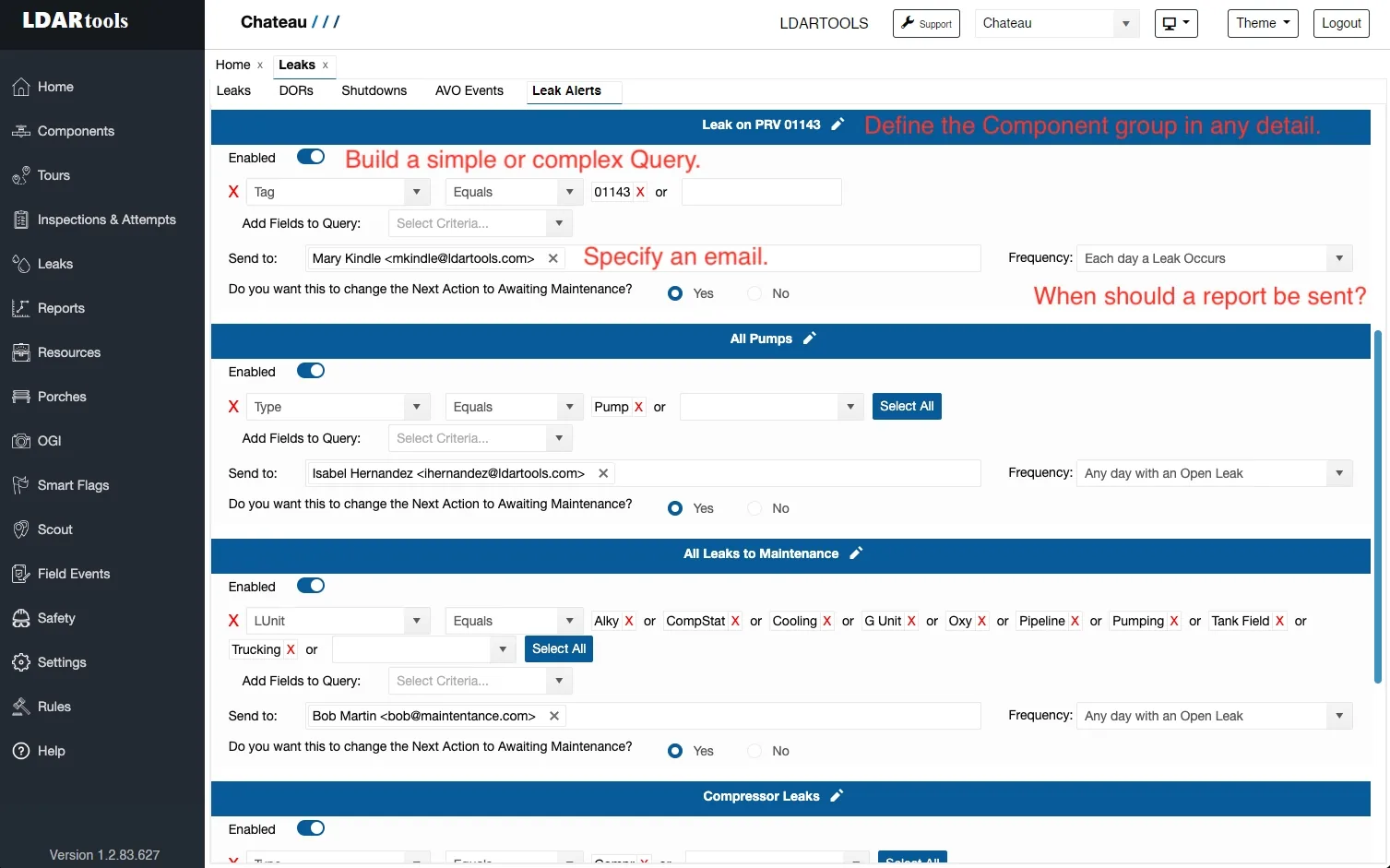
Alerts send automated emails about open leaks and open Delays of Repair (DORs) to any email address, using a selected series of component property values. If anything meets the selected criteria, it is emailed to the people you choose. Alerts live under Leaks > Alerts.
The emails include properties such as Tag and Location Description, plus the three latest leak images (if selected), to help identify and locate the leaks. The due dates on a leak alert are determined by the most stringent requirement for each individual component.
Alerts can be sent to multiple recipients, who can be Chateau users or people who don't have Chateau credentials. See Adding New Alerts for how to set one up.
To view a sample of a Leak Alert, click here.
Leak Alerts and DOR Alerts
Until you set one up, the Alerts tab shows No alerts yet with a prompt to choose Add New.
Add New opens the New Alert dialog: name the alert, set This alert is about to Leaks or DORs, and click Create. Both kinds are built the same way afterwards — pick the components with a query, pick the recipients, and pick when it sends — and each alert carries a Leak or DOR badge in the list.
The type is set once, at creation, and can't be changed later, because the alert's saved query filters on fields specific to that type. If you need the other type, create a second alert.
The option to change the Next Action to Awaiting Maintenance applies to leak alerts only, and does not appear on a DOR alert.
Each alert sits in its own card. The chevron at the left of a card's title bar collapses that alert down to its title, which keeps a long list manageable. The pencil renames the alert and the trash icon deletes it.
What Goes in the Email: Content Rule
Content rule decides what the email contains. The rules on offer depend on the alert's type — a leak alert has six to choose from, a DOR alert only two.
On a DOR Alert
Two rules, both applied to open DORs.
| Content rule | Description |
|---|---|
| Newly Opened | Every send, the email lists only the DORs opened since the previous send. |
| All Currently Open | Every send, the email lists every open DOR fitting the query criteria. A DOR keeps appearing on each send until it closes. |
On a Leak Alert
Six rules, listed from the most immediate to the furthest ahead.
| Content rule | Description |
|---|---|
| Immediately Upon Check-In | Sends an email as soon as a leak is opened in Chateau, either from a manually added failing inspection or a leak processed from Chateau Mobile. This rule has no schedule (see How Often below). |
| Newly Opened | Every send, the email lists only the leaks opened since the previous send. |
| All Currently Open | Every send, the email lists all open leaks fitting the query criteria. A leak keeps appearing on each send until it closes. |
| Within 2 days of Due Date | Every send, the email lists leaks fitting the query criteria whose First Attempt, First Retest or Final Resolution due date falls within 2 days. |
| Within 3 days of Due Date | Every send, the email lists leaks fitting the query criteria whose First Attempt, First Retest or Final Resolution due date falls within 3 days. |
| Within 4 days of Due Date | Every send, the email lists leaks fitting the query criteria whose First Attempt, First Retest or Final Resolution due date falls within 4 days. |
Every alert email has two sections: what is currently open, and what closed since the last email. On a weekly or monthly schedule, that means work finished during the period is still reported rather than dropping out of the email.
Choosing the Fields on a DOR Email
A DOR alert has an Email fields row with a Choose... button. The dialog has three parts:
- Always included in the email — the DOR fields every DOR alert sends and that cannot be switched off: Date Processed, Date Approved, DOR Why, Estimated Repair Date, Shutdown, DOR Work Order, Emission Point(s) and Regulations.
- Optional DOR fields — Next Action, and DOR Stop Leak, which is calculated per DOR, so opt in only when you want it.
- Component properties — any component property in your database. They are split into a Frequently used fields group and an Other fields group, each with its own Select all, and there is a search box alongside a count of how many you have selected.
Click Save fields to apply the selection, or Cancel to leave it as it was. A leak alert has no Email fields picker.
When It Sends: How Often
How often decides when the email goes out.
| How often | Sends |
|---|---|
| Daily | Every day, at the Time to Send. |
| Weekly | Once a week, on the weekday you choose. |
| Monthly | Once a month, on the day of the month you choose. Days 1 to 28 are offered, plus Last day. The 29th to 31st are not offered, because a month without that day would skip the send entirely. |
Time to Send (defaulted to 4:00 AM) can be customized in 15-minute intervals and applies whichever schedule you pick. A line beneath the pickers spells out the resulting schedule so you can check it before leaving the page.
Two content rules override the schedule, and the page tells you when this applies. Both are leak-alert rules, so neither can arise on a DOR alert:
- Immediately Upon Check-In has no schedule at all — it sends on sync.
- Within 2, 3, or 4 days of Due Date stays Daily and the How often picker is locked, so the warning still reaches you before the deadline.
A new DOR alert starts on Weekly, Monday.
Preview email shows the email this alert would send right now, using its current settings. It works the same way on a leak alert and on a DOR alert, and both are built in the same two sections — what is currently open, and what closed since the last alert — with a count beside each section heading. A section with nothing in it is left out.
The preview shows the subject line, the database name, the cards as recipients will see them, and a record count at the bottom. A field with nothing recorded shows a dash. If nothing matches the query at all, the preview says so rather than showing an empty email. It is the quickest way to check an alert before it is due to go out.
Use Send Now to send an alert immediately, outside its schedule.
Getting Notified About Failed AVO Inspections
What happens when a technician records a failing AVO depends on the component's rules, and that decides how you get notified.
If the component's rule has AVO Response Ranges
The failing AVO opens an AVO Leak automatically. It is a leak like any other, so leak alerts include it:
- Use the Immediately Upon Check-In content rule to get an email as soon as the leak comes in from Chateau Mobile.
- Or use Newly Opened on a daily or weekly schedule for a summary.
Note: A leak alert's query filters on component properties, so you can't limit an alert to AVO leaks only. The email lists every leak type (M21, AVO, OGI) that matches the query.
See Automatic AVO Leaks (AVO Response Ranges) to set up response ranges on a rule.
If the component's rule has no AVO Response Ranges
The failing AVO creates an AVO Event instead, which waits for someone to decide whether it's a leak. AVO Events are not leaks, so leak alerts don't include them. To keep track of them:
- Check the AVO Events subtab (Leaks > AVO Events). Every open AVO Event is listed there. See AVO Events.
- Turn on the Open AVO Events > 3 Days audit in Porches > Audit Settings and add yourself to its Mailing List. You'll get an email when an AVO Event has been open for more than 3 days. See Audit Settings.
- Query the Inspections grid for failed AVOs. Go to Inspections & Attempts > Inspections, set Date Performed to the range you want, then filter Inspection Type to AVO and Result to Fail. Save the query (heart icon) so you can rerun it each day or week. See Common Grid Features.
Once an AVO Event is recorded as an AVO Leak, it is included in leak alerts like any other leak.